Recently, a colleague was setting up Logging Analytics to monitor Squid Proxy and ran into some common issues during initial agent configuration. This walkthrough is intended for first-time Logging Analytics users who want to get up and running quickly.
Our entire setup runs within Oracle Cloud, specifically using an Oracle Compute Instance running Squid Proxy. Installation is straightforward within Oracle Cloud, though workloads outside Oracle Cloud may require additional steps per Oracle's documentation.
Management Agent Installation
Step 1: Enable Management Agent
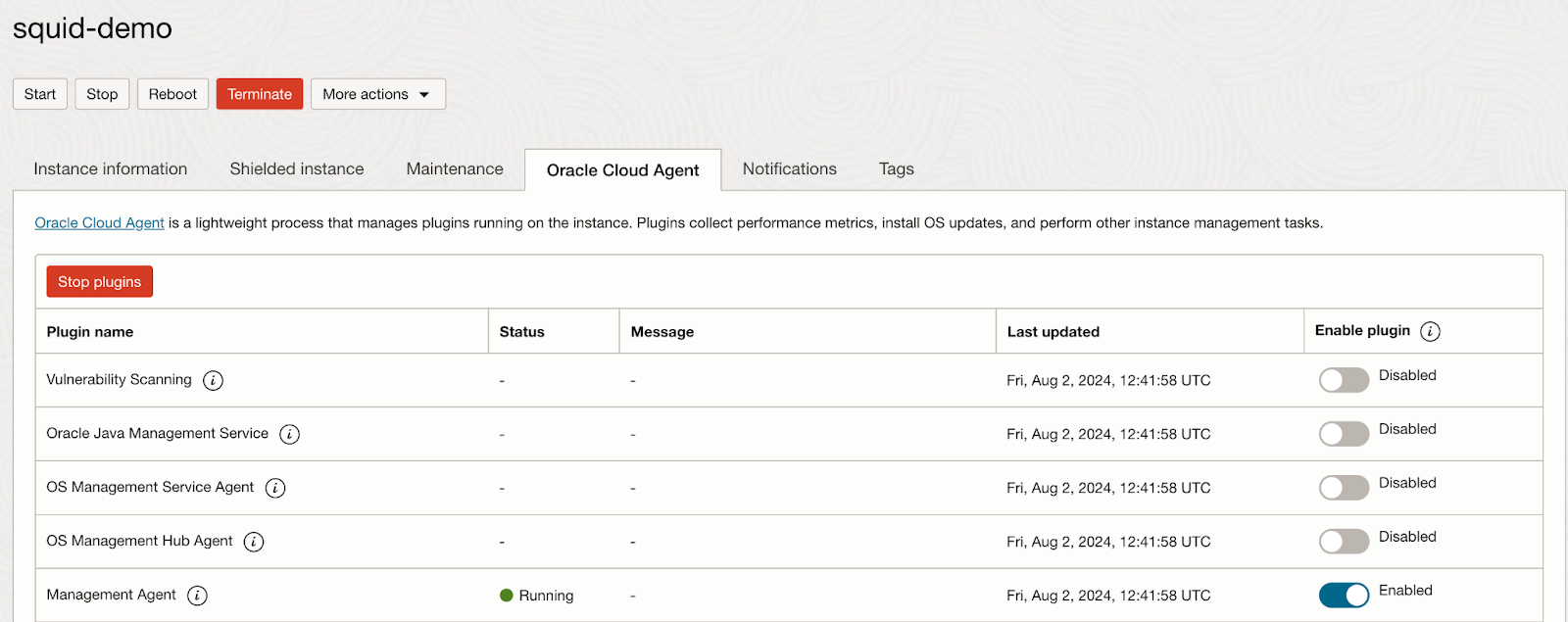
Navigate to Compute → Instances, select your instance, then click the Oracle Cloud Agent tab. Locate the Management Agent plugin and enable it if it is not already active. Wait for the Status to change from "Stopped" to "Started" with the message "agent started."
Adding Log Sources
Step 2: Navigate to Logging Analytics Administration
Access Observability & Management → Logging Analytics → Administration. Click Sources and search for your desired log type — in our case, Squid Proxy. Oracle supports hundreds of sources out of the box.
Step 3: Handle Ineligible Entries
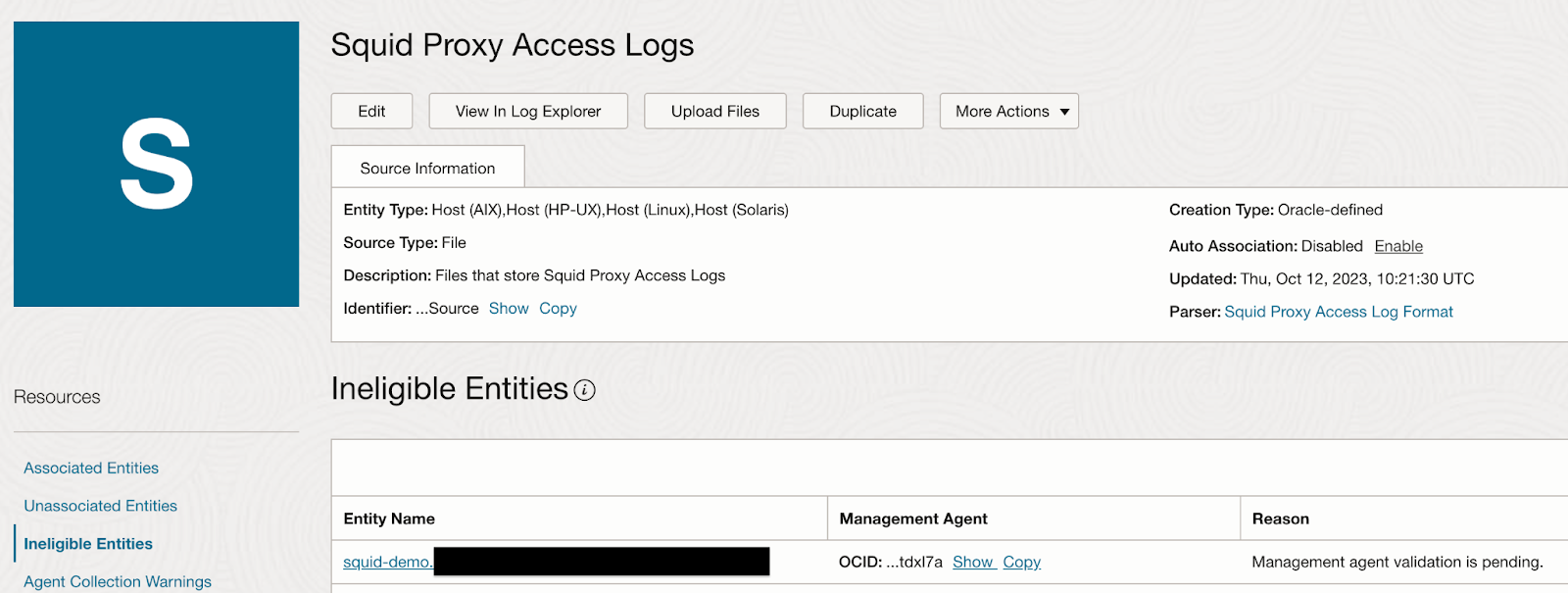
When you attempt to add sources, the instance may appear under Ineligible Entries with the message: "Management agent validation is pending."
Deploying Logging Analytics Software
This is a critical step that's easy to miss. Although the Management Agent exists on the host, the Logging Analytics software must be installed separately.
Navigate to Observability & Management → Management Agents → Agents. Select your agent and click Deploy Plugins. Choose Logging Analytics and click Update. Wait several minutes for deployment to complete.
Verification and Association
Return to Logging Analytics Administration and check the Ineligible Entries status. Once resolved, proceed to Unassociated Entries, select your host, and click Add Association. Create a new Log Group or select an existing one, then click Submit.
Monitor the status progression — entries will move from "Pending" to "Success."
Troubleshooting Agent Collection Warnings
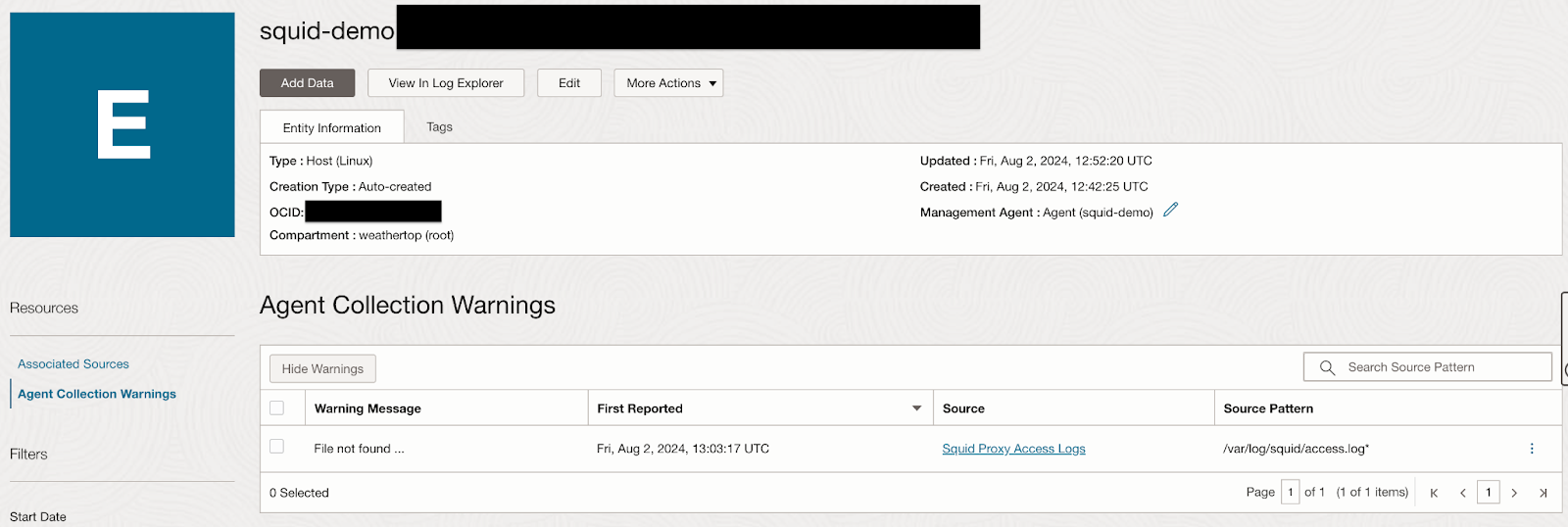
Click on the associated entry name, then check Agent Collection Warnings. In our case, we encountered a "File not Found" error despite the file existing on the host.
File Permission Resolution
The root cause turned out to be a permissions issue. The Squid logs were owned by the root user, but the Oracle Agent was running as a different user without read permissions to the log files.
The solution is to grant the management agent user file and directory access using setfacl commands.
Grant READ permission to the log file:
setfacl -m u:<agentuser>:r <path to the log file/log file name>Grant READ and EXECUTE permissions to the folder:
setfacl -m u:<agentuser>:rx <path to the folder>Set recursive permissions on the parent folder:
setfacl -R -m u:<agentuser>:rx <path to the folder>Set default permissions for future log files (important for log rotation scenarios):
setfacl -d -m u:<agentuser>:rx <path to the folder>These final commands are especially important when log file rotation is in play, ensuring that new log files inherit the correct permissions automatically.
Verification and Testing
After running the permission commands, return to Agent Collection Warnings and confirm that no errors remain. Click View in Log Explorer to access your logs.
Here is an example query to get started:
'Log Source' = 'Squid Proxy Access Logs' | timestats count as logrecords by 'Log Source' | sort -logrecordsIf you don't see recent logs right away, try adjusting the time period in the explorer — it may take a few minutes for the initial collection to complete.
Need Help?
If you need assistance with implementation, tuning, customization, or management of Oracle Log Analytics, reach out to our team. We'd be happy to help you get the most out of your logging and observability setup.