Looking for a quick way to begin monitoring through OCI Observability and Management? In this post, we'll walk through how to establish health checks on your servers and receive email alerts when they become inaccessible. The entire process can be completed in about five minutes.
Step 1: Create an Email Notification Subscription
The first step is to create an email notification subscription so you can receive alerts.
Navigate to the Notifications service via the hamburger menu: Developer Services → Notifications (under Application Integration).
Once there:
- Choose your Compartment on the right side
- Click Create Topic
- Provide a name and description for the topic
- Click Create
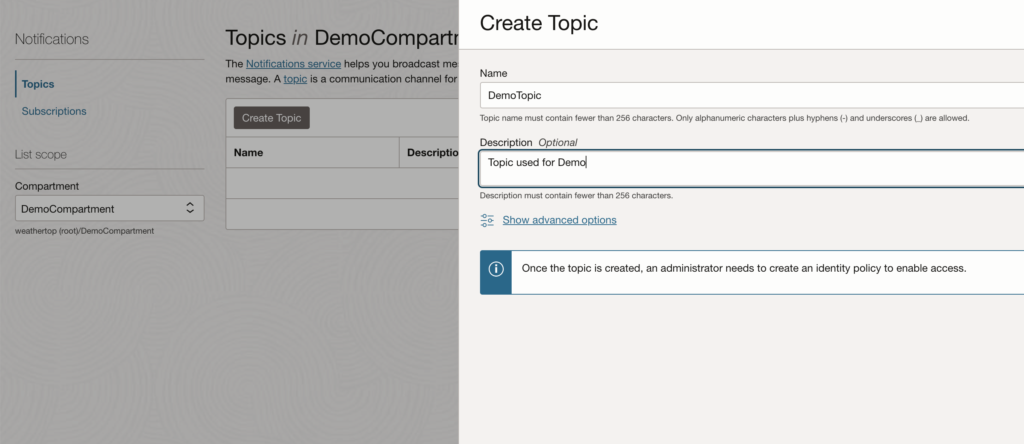
After the topic is created:
- Select the new topic link
- Click Create Subscription
- Choose Email as the alert method
- Enter the email address you want alerts sent to
- Click Create
You will receive a confirmation email — click the link in the email to confirm your subscription.
Step 2: Create the Health Check
Using the hamburger menu again, navigate to Observability and Management → Health Checks (under Monitoring).
- Ensure you're in the same Compartment as your email subscription
- Click Create Health Check
- Provide a name for the health check
- Choose a target to monitor (this can be any server or instance you want to track)
- Select a vantage point — this is the location from which the ping will originate
- Choose a type: either HTTP or Ping
- Click Create Health Check
Step 3: Link the Notification via an Alarm
After your health check is created, you need to link the notification service via an alarm so that you actually receive alerts when something goes wrong.
- Click Metrics from the left menu
- Locate Ping Test Successful Rate
- Access the Options dropdown and select Create an Alarm on this Query
The minimal configuration requires:
- Provide an Alert name
- Under Trigger Rule 1, change the operator from "Greater Than" to Less Than and set the value to alert at 0
- Under Define alarm notifications, select your notifications compartment and topic
- Ensure Enable Alarm? is checked
- Click Save Alarm
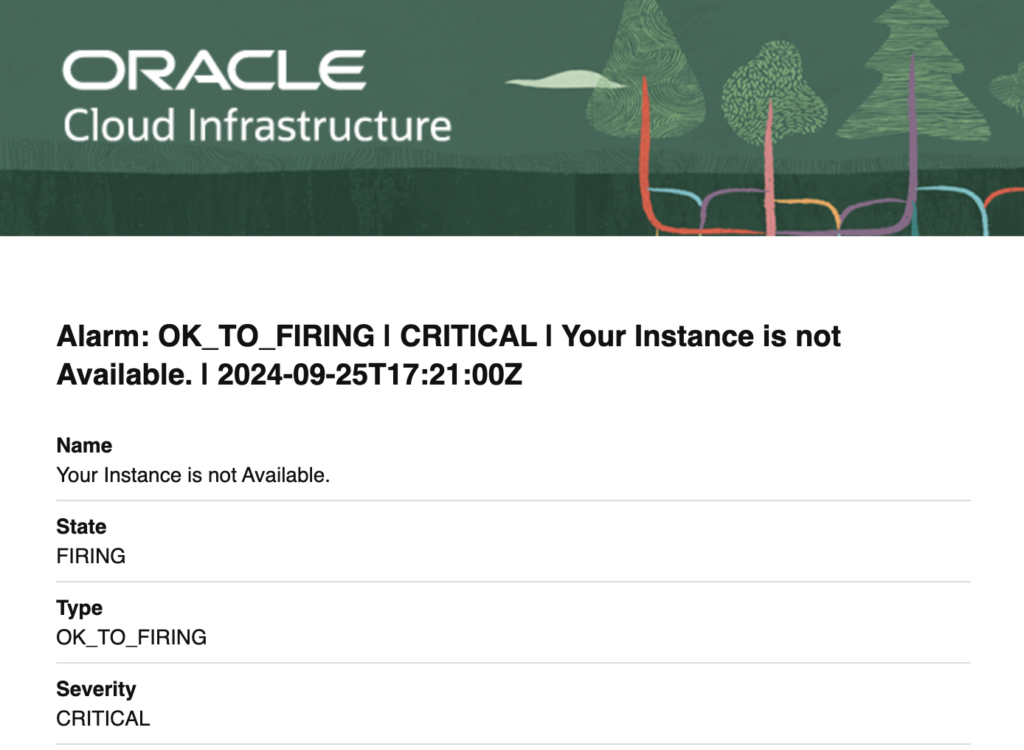
That's it! Your health check is now configured. When the target becomes unreachable, the alarm will trigger and you'll receive an email notification like this:
Get Started with OCI Monitoring
We hope this helps you get started with OCI O&M monitoring. If you have any questions or would like help setting up more comprehensive monitoring for your environment, feel free to reach out to us.


